
 Chat with us on WhatsApp

How to Set Up Your Desk Chair: Height, Armrests & Screen Position
A desk chair can have plenty of adjustments and still feel uncomfortable if the setup sequence is wrong. Most posture problems at a desk come from small positioning errors that build up over several hours — shoulders lifting toward the ears, screens sitting too low, or armrests blocking proper desk access.
A good desk chair setup guide focuses on alignment between the chair, desk, monitor, and keyboard rather than treating the chair as a standalone product. The goal is simple: reduce strain while keeping movement natural throughout the day.
If you are still learning the basics of ergonomic positioning, it also helps to read our wider guide on how to adjust office chair posture correctly. This article focuses specifically on setup order, measurements, and common positioning mistakes.
The Correct Order to Adjust a Desk Chair
Many people adjust random parts of the chair until it “feels right”. That usually creates compensations elsewhere.
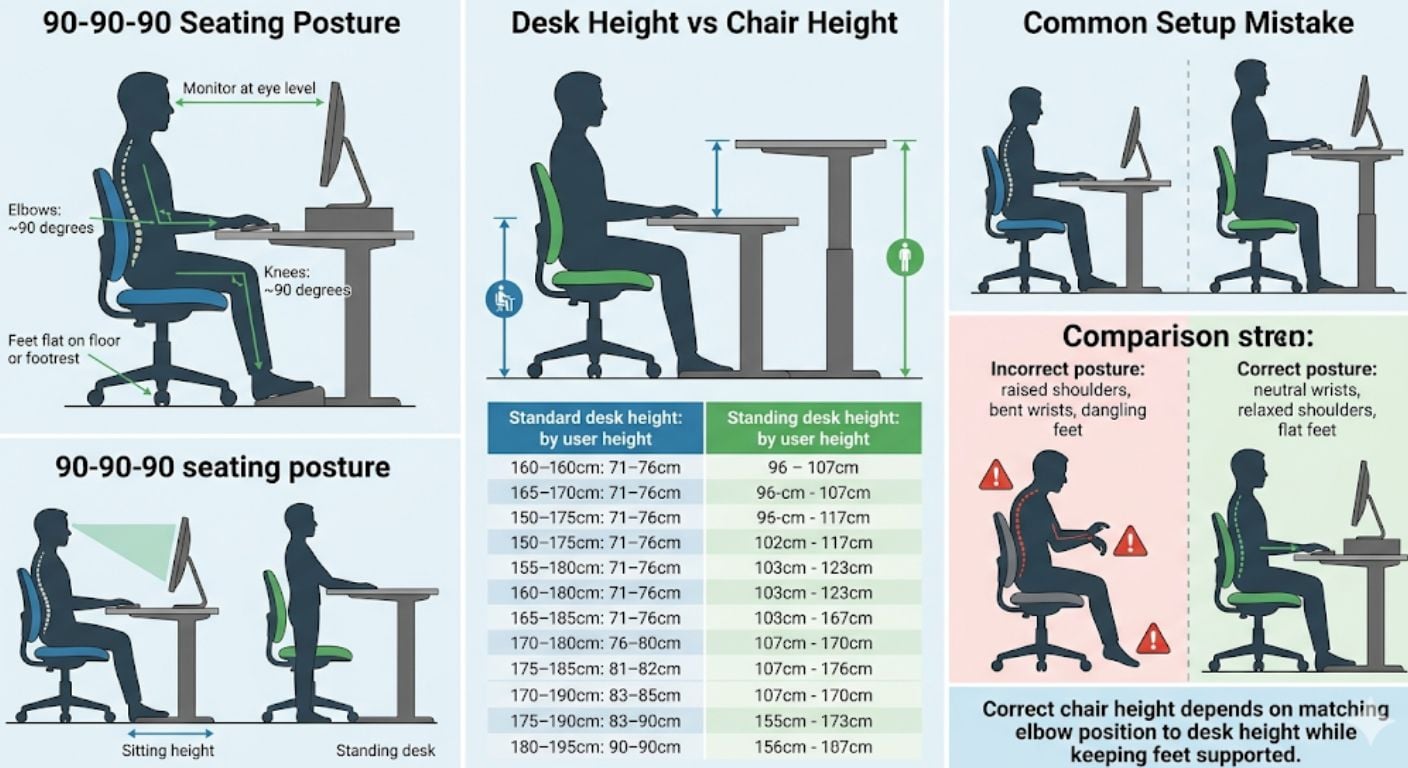
A more reliable setup sequence is:
- Set chair height
- Position feet and knees
- Adjust seat depth
- Set armrest height
- Position the monitor
- Fine-tune recline and support
Each adjustment affects the next one. If monitor height is adjusted before chair height, for example, the screen often ends up compensating for poor seating position.
Start With Chair Height
The chair height determines the rest of the workstation setup.
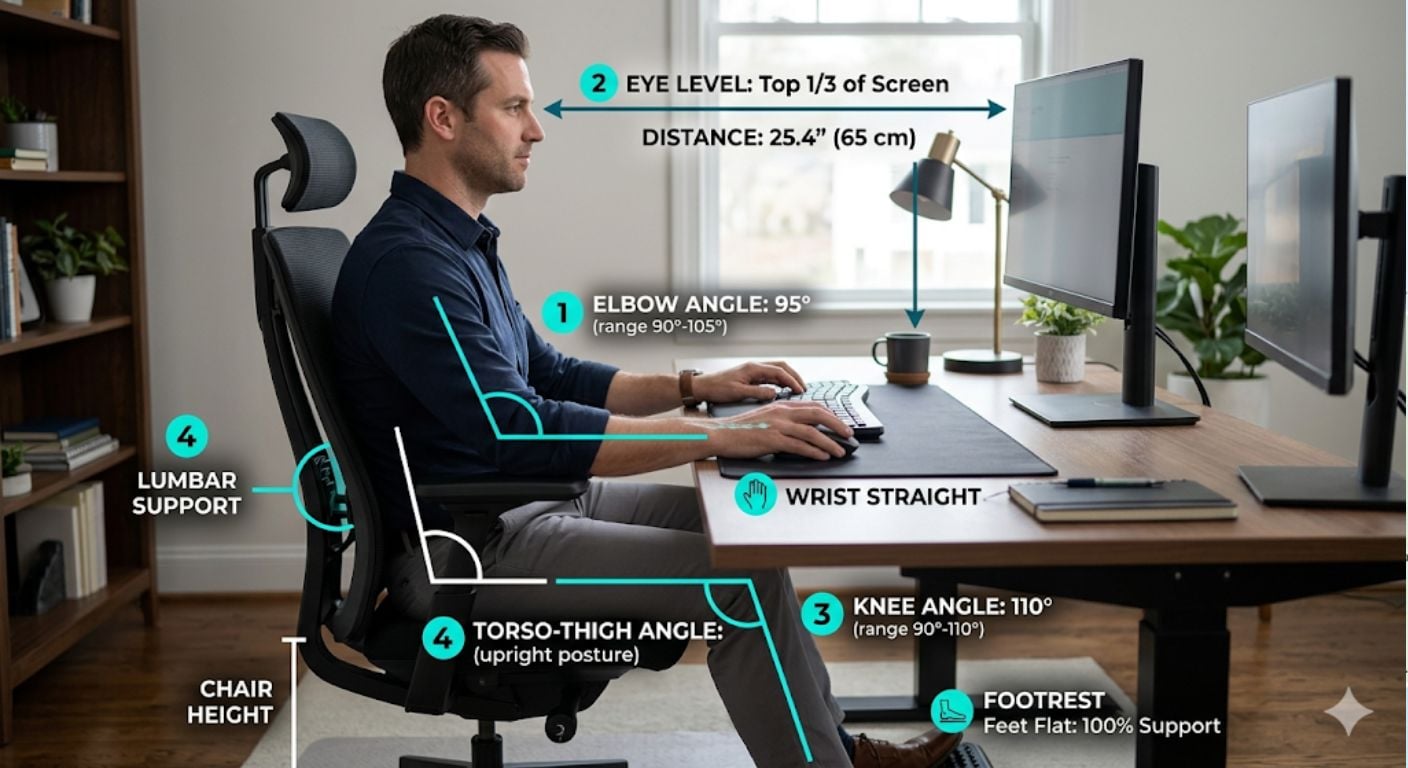
Sit fully back in the chair with your feet flat on the floor. Your knees should sit at roughly 90–100 degrees, with hips level with or slightly above knee height.
A quick way to check:
- Feet stay flat naturally
- Thighs feel supported without pressure
- Knees are not lifted upward
- Shoulders remain relaxed while typing
If your desk is fixed and slightly too high, prioritise elbow-to-desk alignment first, then use a footrest if needed.
How to adjust an office chair for your height
- Stand beside the chair and set the seat just below kneecap height
- Sit fully back against the backrest
- Place both feet flat on the floor
- Check that knees sit level with or slightly below hips
- Rest elbows beside the body at roughly 90 degrees while typing
This creates a more neutral seated position and reduces pressure through the lower back and shoulders.
For more detailed desk-to-chair measurements, see our guide on desk height and elbow angle setup.
The Seat Depth Rule Most People Miss
Seat depth affects circulation more than most people realise.
When sitting fully back in the chair, there should be roughly a 2–4 finger gap between the edge of the seat and the back of the knees. Some people call this the “fist test”.
Too much depth:
- Cuts into the back of the knees
- Reduces circulation
- Encourages slouching forward
Too little depth:
- Reduces thigh support
- Places more pressure on the sitting bones
- Can make the chair feel unstable
We regularly find our customers focus heavily on lumbar support specifications but overlook seat depth completely. In practice, poor seat depth causes discomfort far faster than most people expect during full working days.
If your chair includes a seat slide adjustment, use it before changing recline or cushion positioning.
Armrests Should Support — Not Block
Armrests are one of the most misunderstood parts of office chair setup.
They should lightly support the forearms without pushing the shoulders upward or preventing the chair from moving close enough to the desk.
A good setup usually means:
- Elbows remain close to the body
- Forearms stay roughly parallel to the desk
- Shoulders stay relaxed
- Wrists remain neutral while typing
Why are office chair armrests controversial?
Armrests become a problem when they stop the chair fitting properly under the desk. This forces users to reach forward instead of sitting back into the chair, which increases upper-back and shoulder strain over time.
Shorter or adjustable armrests are often easier to work with in smaller home office setups.
If your shoulders feel raised while typing, the armrests are probably too high. If you lean heavily onto one side, they may be too low.
How High Should Your Monitor Be?
Ideally, your eyes should align with a point roughly 5–10 cm below the top edge of the monitor. The centre of the screen should sit slightly below natural eye level so the neck stays neutral while reading.
The monitor should also sit around an arm’s length away for most setups.
A screen placed too low usually causes:
- Neck flexion
- Rounded shoulders
- Forward head posture
A screen placed too high often causes:
- Neck extension
- Eye strain
- Upper neck tension
The Mayo Clinic office ergonomics guide also recommends keeping the monitor directly in front of you to avoid repeated neck rotation throughout the day.
Correct Monitor Position for Dual Screens
Dual monitor setups often create uneven posture habits.
The correct positioning depends on usage:
If both monitors are used equally
- Centre both screens together
- Place the join line directly in front of you
- Keep both monitors at the same height
If one monitor is primary
- Place the main screen directly ahead
- Angle the secondary monitor slightly inward
- Keep viewing distances similar
Avoid placing secondary monitors too far sideways. Repeated neck rotation over long periods creates more strain than most people notice initially.
Screen Distance and Viewing Angle
The ideal viewing distance depends partly on monitor size, but most setups work well with the screen around 50–70 cm from the eyes.
You should be able to:
- Read text without leaning forward
- See the entire screen comfortably
- Maintain relaxed shoulders
- Keep your head balanced naturally
If you constantly lean toward the screen, increase text scaling before moving the monitor closer.
Signs Your Desk Chair Is Adjusted Correctly
A properly adjusted setup should gradually disappear into the background during work.
Good signs include:
- No pressure behind the knees
- Shoulders remain relaxed
- Feet stay planted naturally
- You can recline slightly without losing screen visibility
- No obvious neck strain after several hours
- Breathing feels natural rather than compressed
Poor setups usually create discomfort in predictable areas:
- Neck pain → monitor height issue
- Shoulder tension → armrest or desk height issue
- Lower-back fatigue → seating depth or support issue
- Tingling legs → seat height or depth issue
Common Desk Chair Setup Mistakes
Raising the chair too high
People often lift the chair to match desk height but leave their feet unsupported. This increases pressure under the thighs and encourages instability.
Sitting forward on the seat
Sliding away from the backrest removes proper support from the pelvis and lower back.
Using armrests as weight-bearing supports
Armrests should assist posture, not carry body weight continuously.
Positioning the monitor off-centre
Working with a monitor angled too far sideways creates uneven neck loading over time.
Ignoring movement completely
Even a correctly adjusted chair is not designed for completely static sitting. Small posture changes and regular standing breaks still matter.
If you are comparing adjustment features between models, our office chair collection includes chairs with adjustable armrests, height control, and supportive backrest designs suited to longer desk sessions.
You may also find it useful to read our guide on adjusting an office chair for maximum comfort if you want a broader overview of ergonomic features.
Practical Setup Advice for Different Desk Types
Fixed-height desks
Prioritise elbow positioning first. If the desk sits slightly high, raise the chair and add a footrest rather than lowering the elbows too far.
Compact home office setups
Shorter armrests and shallower seat depths are often easier to position properly in tighter spaces.
Shared workstations
Choose chairs with quick adjustment controls. Shared desks rarely work well with fixed-position seating.
Laptop-only setups
Laptop screens are usually too low for proper posture. A laptop stand combined with an external keyboard and mouse creates a far better setup.
FAQ
Should my knees be higher than my hips?
No. Knees sitting higher than the hips usually means the chair is too low. This tilts the pelvis backward and increases pressure through the lower spine. Ideally, hips should sit level with or slightly above the knees.
How far should my monitor be from my eyes?
For most people, around 50–70 cm works well. A simple check is whether you can read comfortably without leaning forward or squinting.
Do armrests actually help posture?
Yes, when adjusted correctly. Proper armrest positioning reduces shoulder tension and supports the forearms during typing. Poorly positioned armrests often create more strain instead.
What if my feet do not reach the floor?
Use a footrest rather than lowering the chair too far. Proper elbow and desk alignment matters more than forcing the chair lower.
Is reclining slightly better than sitting upright all day?
Usually, yes. A slight recline often reduces spinal loading compared to rigid upright sitting, provided the monitor position still supports neutral neck posture.

Final Thoughts
A comfortable desk setup comes from alignment rather than expensive features alone. Chair height, armrest position, seat depth, and monitor placement all work together.
Small adjustments usually matter more than dramatic posture corrections. Once the basics are set correctly, the chair should feel supportive without constantly drawing attention to itself.
If you are still comparing ergonomic features and adjustment types, our wider guide on office chair posture adjustment explains how different chair controls affect long-term comfort and support.


Comments