
 Chat with us on WhatsApp

How to Adjust An Office Chair for Maximum Comfort
Knowing how to adjust an office chair properly can make a noticeable difference to comfort during desk work. Most office chairs include several controls, but many people only use the height lever and ignore the rest. That often means the chair is not supporting the body as well as it should.
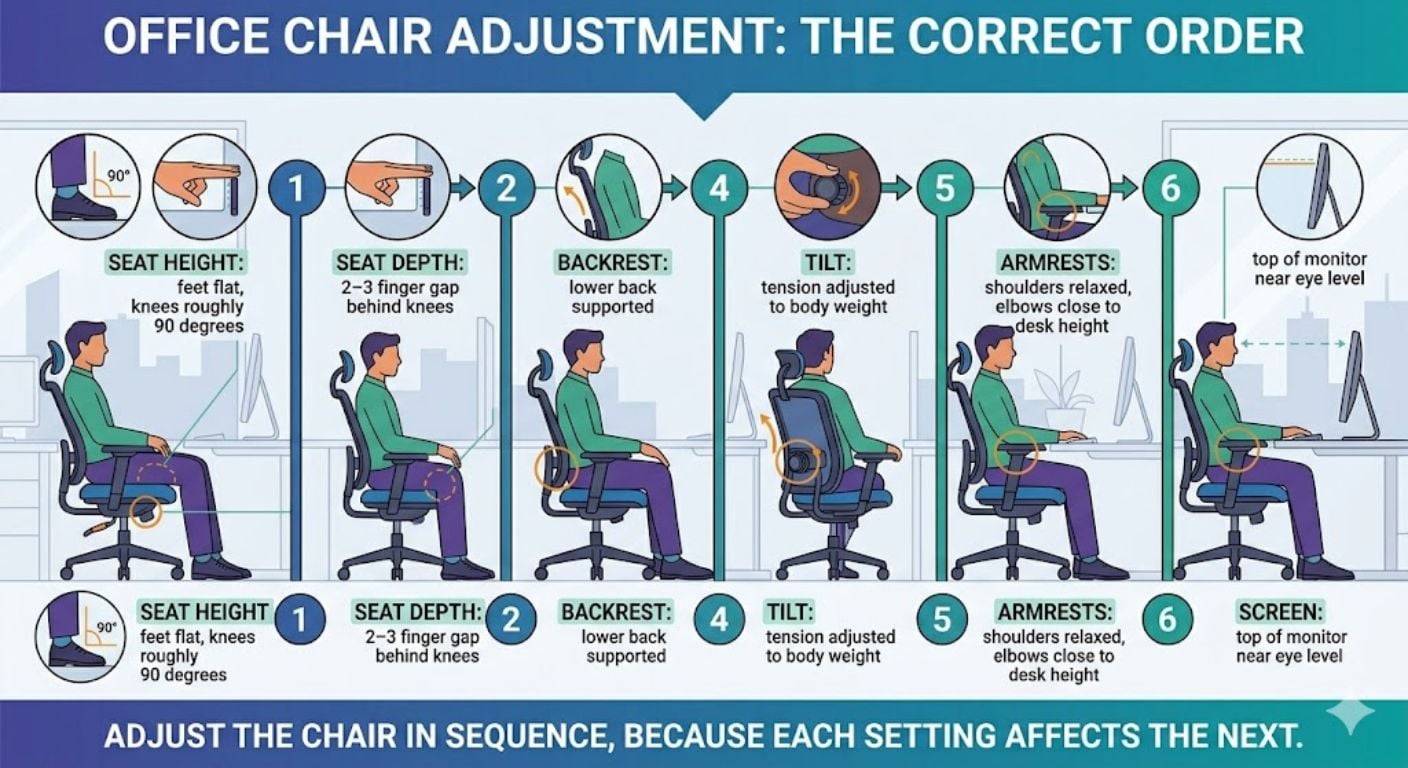
This guide explains the main office chair adjustments in a practical order: seat height, seat depth, backrest position, tilt, armrests and foot support. The aim is not to create a perfect posture that never changes. It is to set the chair so your feet, legs, back, arms and screen position work together more comfortably.
For a wider overview of sitting position and desk setup, see our full office chair posture guide.
Start with the seat height
Seat height is usually the first adjustment to make because it affects almost everything else. If the chair is too low, your knees may sit higher than your hips and your shoulders may lift when using the desk. If it is too high, your feet may not rest properly on the floor.
A good starting point is to sit with:
- Your feet flat on the floor
- Your knees at roughly a right angle
- Your thighs supported without pressure behind the knees
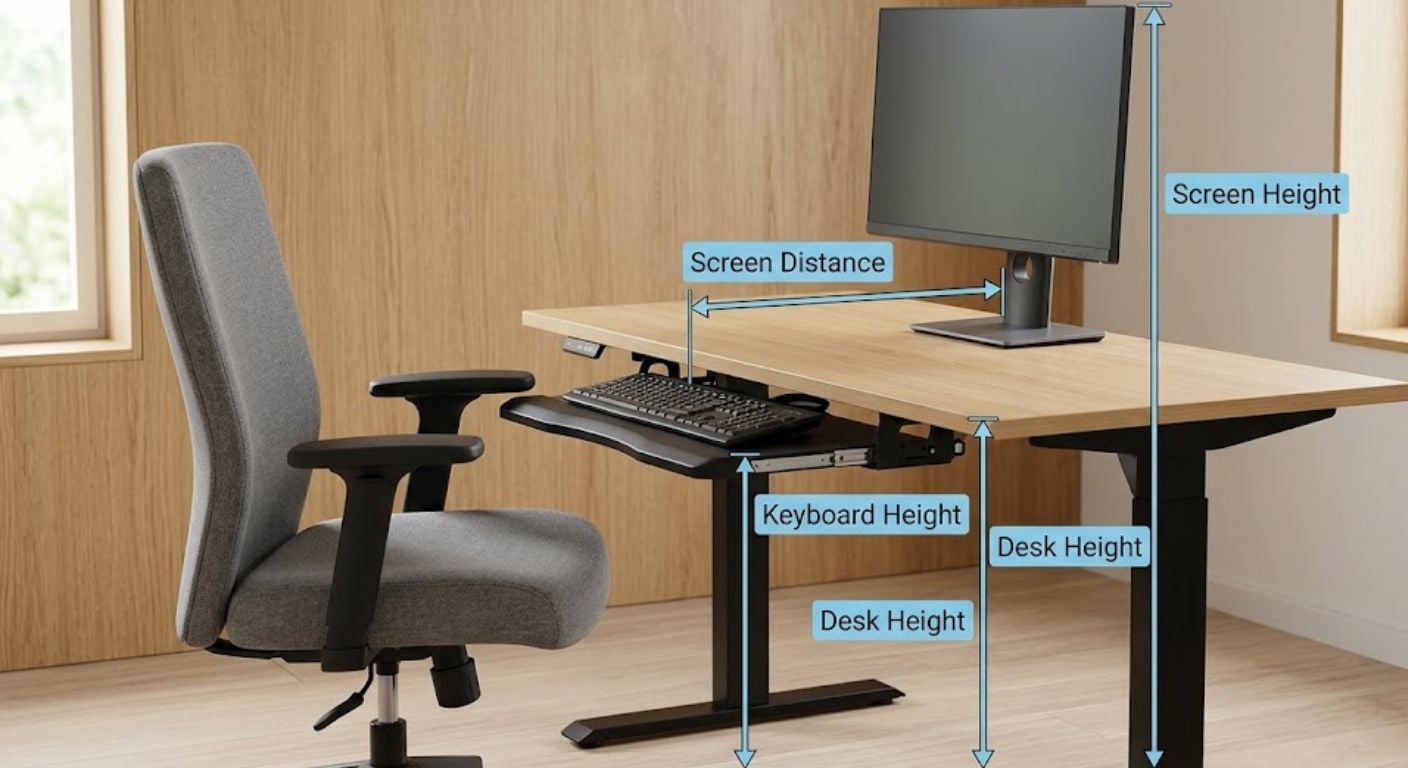
- Your elbows close to desk height when your shoulders are relaxed
If your desk is fixed and too high, raise the chair so your elbows meet the desk comfortably. Then use a footrest if your feet no longer reach the floor. This is often better than sitting too low and lifting your shoulders all day.
For a more detailed breakdown of desk height and elbow position, read our desk chair height guide.
Check the gap behind your knees
Seat depth controls how far your thighs are supported from your hips to the back of your knees. If the seat is too deep, the front edge can press into the back of your legs. If it is too shallow, your thighs may not feel properly supported.
The simple rule is to leave around two to three fingers between the front edge of the seat and the back of your knees. This helps support the legs without cutting into circulation or forcing you to perch forward.
If your chair has a seat slide, sit back fully into the chair first. Then move the seat pan forward or backward until that gap feels right. If your chair does not have seat depth adjustment, check whether you naturally sit against the backrest. If you keep sliding forward, the seat may not suit your body size.
Set the backrest so it supports your lower back
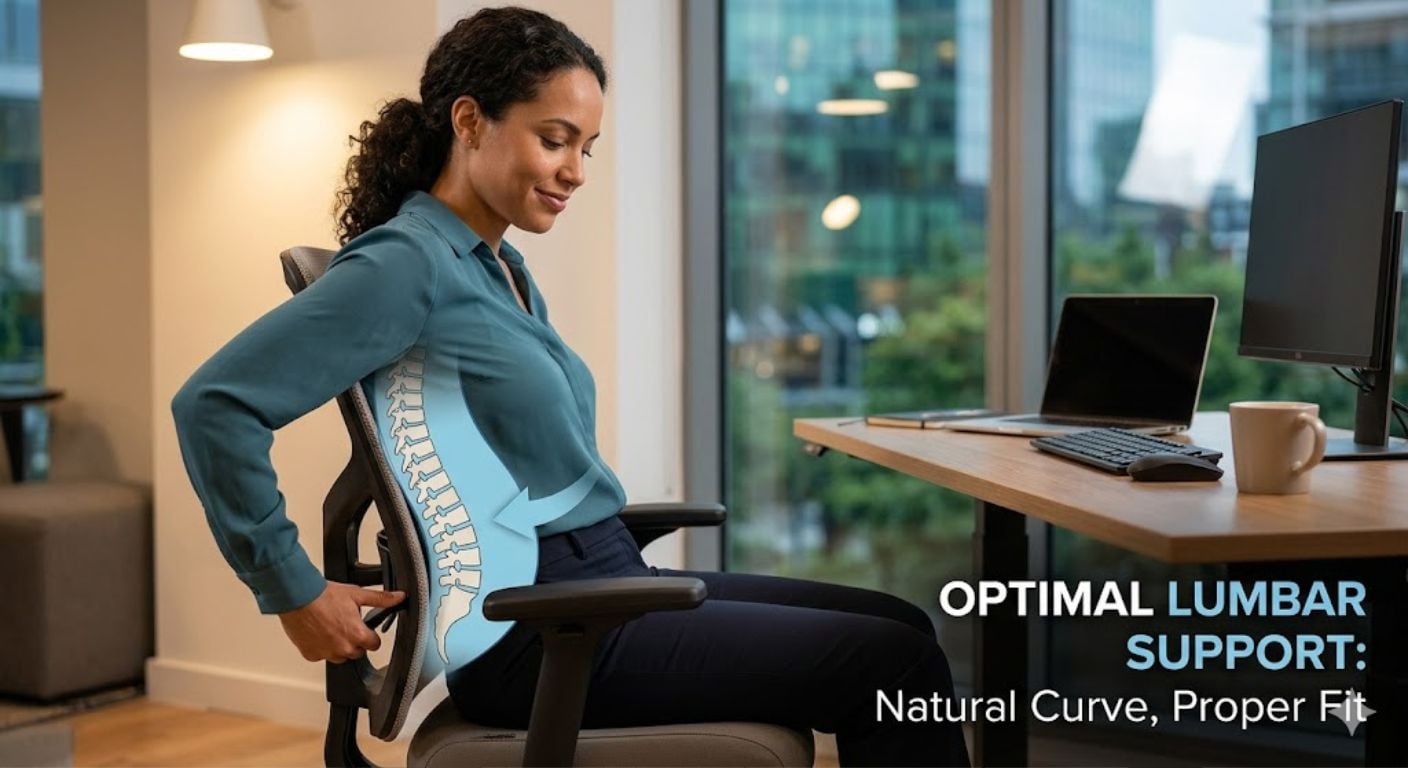
The backrest should support the natural curve of your lower back rather than pushing you forward or leaving a gap behind you. Sit fully back in the chair and check whether the lower part of the backrest meets your back around belt-line height.
If the chair has adjustable lower-back support, move it until it sits in the curve of your lower back. It should feel supportive, not forceful. Too much pressure can be just as uncomfortable as too little support.
We find our customers often focus on seat padding first, but poor backrest position is usually what makes a chair feel wrong after a full day of use.
If you need more detail on this specific area, see our guide to back support in office chairs.
Adjust the tilt and recline controls
Many office chairs have a tilt or recline function under the seat. This may include a lever, a lock, or a round tension knob. These controls affect how easily the chair leans back and whether the backrest stays fixed or moves with you.
The chair should not throw you backwards when you lean into it. It should also not feel so stiff that the backrest barely moves. Adjust the tension until the chair reclines smoothly with your body weight.
A typical setup is:
- Sit fully back in the chair.
- Unlock the tilt or recline control if your chair has one.
- Lean back gently and check how easily the chair moves.
- Turn the tension knob tighter if it reclines too easily.
- Turn it looser if the chair feels too stiff.
- Lock the chair only when you want a fixed sitting angle.
For more detail on this control, read our dedicated guide to office chair tilt tension.
Position the armrests without lifting your shoulders
Armrests should support your forearms lightly while your shoulders stay relaxed. If the armrests are too high, they can push your shoulders upward. If they are too low, they may not support your arms at all.
Set them so your elbows rest close to your sides and your forearms sit comfortably. Your wrists should stay fairly straight when typing or using a mouse. If the armrests stop you getting close enough to the desk, lower them or move them out of the way if the chair allows it.
Armrests are helpful when they support relaxed posture. They become a problem when they force your arms into an awkward position.
Match the chair to the desk and screen
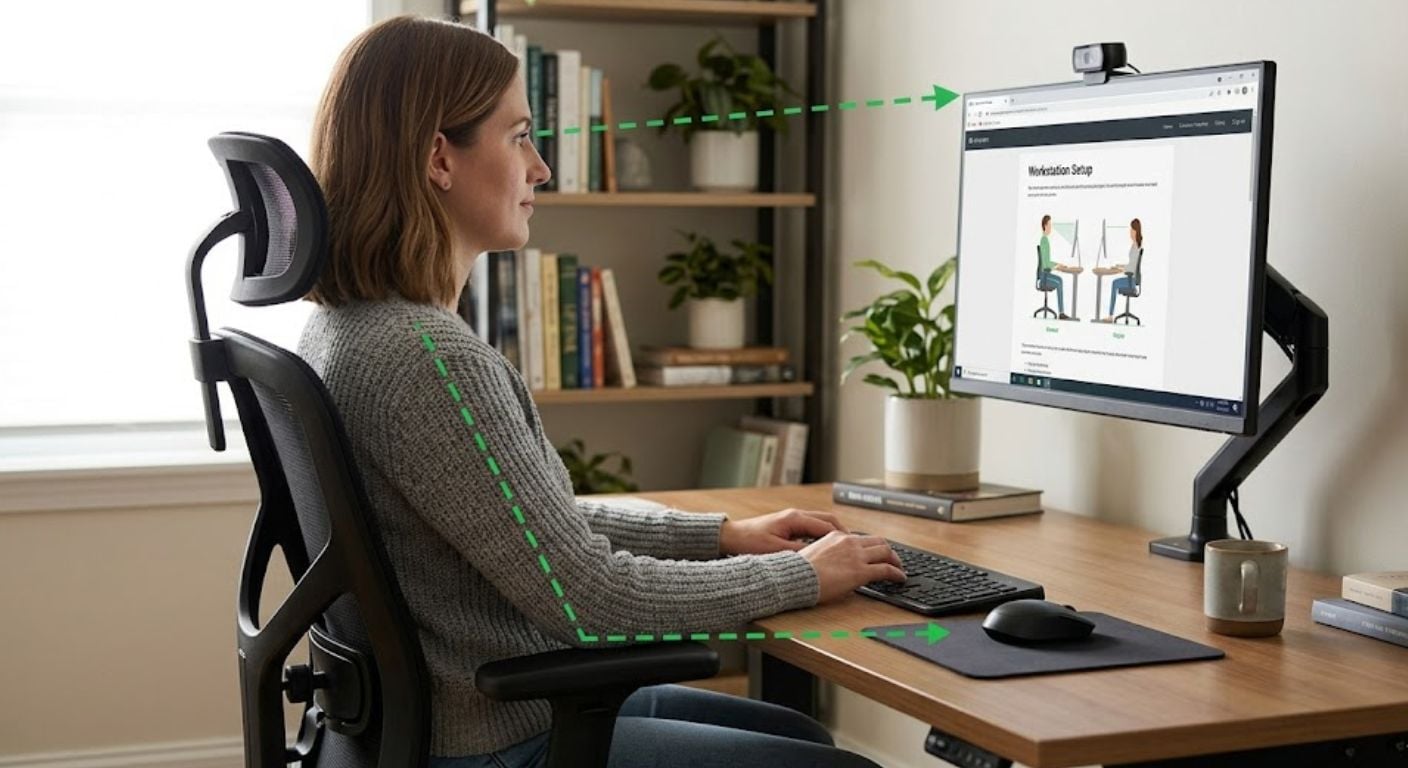
A chair cannot solve the whole workstation on its own. Once your chair feels right, check the desk and screen position. Your elbows should sit close to desk height, and the top of your screen should be roughly at eye level or slightly below.
The UK Health and Safety Executive gives practical guidance on display screen equipment setup, including posture, screen position and workstation layout. You can use this as a general reference when checking your desk setup.
If your screen is too low, you may lean forward or look down for long periods. If it is too high, your neck may extend upward. Small changes to screen height often make the chair feel more comfortable because you stop fighting the desk layout.
When your chair still feels uncomfortable
If you have adjusted the chair and it still feels wrong, the issue may be fit rather than setup. Not every chair suits every body size, desk height or working style.
A chair may be unsuitable if:
- Your feet cannot rest properly even after adjustment
- The seat edge presses behind your knees
- The backrest does not meet your lower back
- The armrests stop you sitting close to the desk
- The chair feels unstable or too narrow for regular use
This is where product measurements matter. Before choosing a new chair, check seat height range, seat width, overall height, armrest position and whether the chair includes the adjustments you actually need.
You can browse our full range of office chairs to compare styles, materials and adjustment options.
Office chair adjustment checklist
- Feet flat on the floor or supported by a footrest
- Knees at roughly a right angle
- Two to three fingers between the seat edge and the back of the knees
- Lower back supported by the backrest
- Tilt tension set to move comfortably with your weight
- Armrests low enough to keep shoulders relaxed
- Screen positioned near eye level
FAQ
How do I adjust an office chair for my height?
Raise or lower the chair until your feet rest flat on the floor and your knees sit at roughly a right angle. Your elbows should also sit close to desk height when your shoulders are relaxed. If the desk is too high, raise the chair and use a footrest.
What is the correct gap behind my knees?
Leave around two to three fingers between the front edge of the seat and the back of your knees. This gives your thighs support without the seat pressing into the back of your legs. If your chair has a seat slide, adjust it while sitting fully back.
What does the knob under an office chair do?
The round knob under many office chairs usually controls tilt tension. It changes how easily the chair reclines when you lean back. Tighten it if the chair moves too easily. Loosen it if the backrest feels too stiff or difficult to move.
Should my office chair tilt or stay fixed?
A slight controlled recline can help the chair move with you during the day. A fixed upright position may suit short tasks, but staying locked in one position for long periods can feel restrictive. The best setting is usually stable, supported and easy to move from.
Final takeaway
The most comfortable office chair setup usually comes from a sequence of small adjustments rather than one single setting. Start with seat height, then check seat depth, back support, tilt tension, armrests and screen position.
If you are still unsure whether the chair itself is the right fit, use our wider office chair posture and adjustment guide before comparing replacement options.


Comments